
How to Print a PDF to Scale: Technical Drawing Settings
Sep 24, 2026
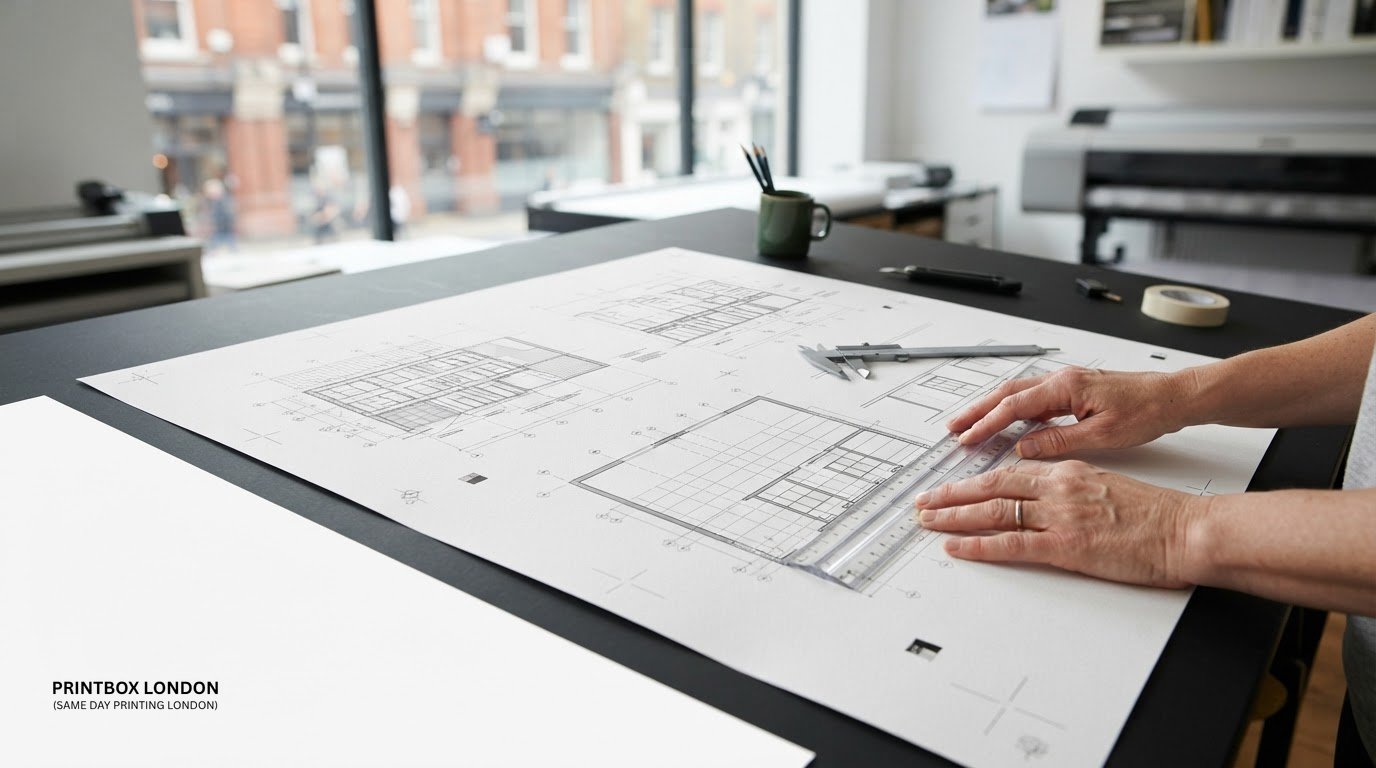
A single hidden default in your print dialogue box is shrinking your technical drawings by up to 7%, turning millimetre-perfect CAD vectors into useless scrap paper. It is an infuriating problem. Nothing wastes time and budget quite like having a local council planning application rejected at the validation stage, or discovering that tiled sewing patterns won't align across page margins. Knowing exactly how to print a PDF to scale means taking control back from automated software drivers that quietly resize your artwork to fit arbitrary printable borders.
You can consistently achieve true 100% scale output across both standard desktop devices and large-format plotters without burning through expensive paper on test runs. This guide walks through the exact page handling rules in Adobe Acrobat, explains how to navigate Windows and macOS print controls, and demonstrates simple calibration checks using physical scale rulers so your drawings stay dead accurate every time.
Key Takeaways
- Learn how to print a PDF to scale by selecting "Actual Size" or 100% custom scale in Adobe Acrobat instead of allowing driver margins to shrink your artwork.
- Identify why browser-based PDF viewers and operating system print dialogues distort vector drawings by forcing automated margin padding.
- Ensure architectural drawings pass local council planning validation by pairing correct sheet geometry with physical scale bars and calibration boxes.
- Master multi-page poster tiling controls to accurately align multi-sheet sewing patterns and engineering templates on standard desktop paper.
- Recognise when complex vector drawings require dedicated wide-format plan printing to preserve true ratios across sheets from A2 up to A0.
What Printing to Scale Means and Why Default Settings Fail
Every line on a technical drawing represents a real-world distance calculated at a strict ratio. Understanding what printing to scale means begins with this proportional relationship: 1:1 translates directly to full-size manufacturing templates, 1:50 or 1:100 maps out domestic interiors, and 1:1250 establishes site layouts for municipal planning. When you need to establish how to print a PDF to scale, you are instructing the printer hardware to honour those precise mathematical vectors without alteration.
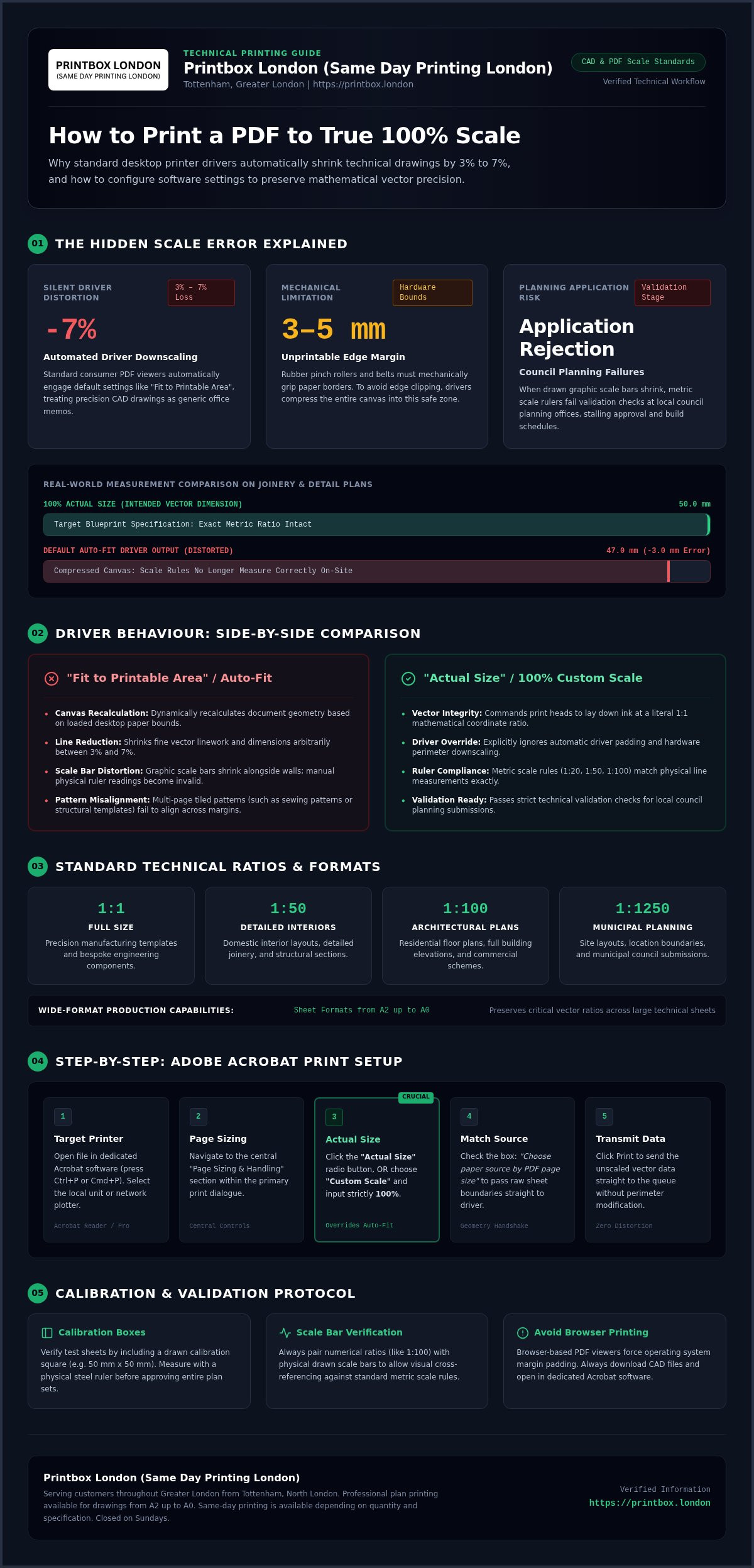
Standard print drivers ruin this accuracy by default. The moment you press print, consumer PDF viewers and desktop operating systems automatically apply options like "Fit to Printable Area", "Scale to Fit", or "Shrink Oversized Pages". These presets treat technical drawings like standard office memos. By forcing the outer bounds of your page into the hardware margins of a desktop machine, the driver automatically shrinks your vector line work by 3% to 7%. That tiny reduction ruins the entire sheet. A 50-millimetre dimension on an interior joinery plan shrinks to 47 millimetres, invalidating physical scale rulers and forcing site contractors to guess critical measurements.
The Critical Difference Between 100% Actual Size and Auto-Fit
Auto-fit recalculates your document geometry to ensure nothing falls outside a desktop printer's physical printable boundary. It compresses the entire canvas dynamically based on whatever paper is loaded. Selecting Actual Size or forcing a 100% Custom Scale overrides this behaviour. It commands the print head to lay down ink at a literal 1:1 ratio with the PDF's internal coordinate system.
If you output an architectural plan using auto-fit, the drawn graphic scale bar shrinks alongside the walls and boundaries. While the bar itself remains proportional to the shrunken lines, standard metric scale rules (such as 1:20 or 1:50) no longer align with the physical page. Any manual measurement taken on-site becomes immediately incorrect.
Why Desktop Printers Force Automatic Shrinking
Consumer desktop printers rely on physical rubber feed rollers, pinch wheels, and mechanical belts to guide paper across the print carriage. Because these internal mechanisms must physically grip the outer edges of the paper, standard office hardware cannot lay ink right to the edge of the sheet. They impose hardware-enforced unprintable margins, usually 3 mm to 5 mm along every border.
- Hardware clipping: Printing an unbordered A4 technical drawing at true 100% scale on a standard office machine clips lines that fall within that 5 mm perimeter.
- Automated scaling defence: To prevent clipped title blocks and missing border lines, driver software applies auto-reduction automatically.
- Driver overrides: Learning how to print a PDF to scale requires explicitly instructing your software to ignore these automatic safety margins.
How to Print a PDF to Scale in Adobe Acrobat: Step-by-Step
Adobe Acrobat remains the industry benchmark for processing CAD exports and line drawings. Achieving true physical measurements requires bypassing automated page handlers directly in the native dialogue. Open your vector file in dedicated Acrobat software (such as Acrobat Reader or Pro) rather than a web browser. Press Ctrl+P on Windows or Cmd+P on macOS to access the main print controls.
Executing how to print a PDF to scale correctly comes down to five deliberate steps within this interface:
- Select your target printer: Pick your local production unit or network plotter from the top dropdown list.
- Access Page Sizing & Handling: Navigate to the central controls containing page adjustment options.
- Activate Actual Size: Click the "Actual Size" radio button. Alternatively, check "Custom Scale" and set the input field strictly to 100%.
- Match paper orientation: Check the box marked "Choose paper source by PDF page size" so the software passes raw sheet boundaries directly to the driver.
- Transmit the vector data: Click "Print" to send the unscaled drawing straight to the queue.
Configuring Page Sizing and Handling Options Correctly
Never leave "Fit", "Shrink oversized pages", or "Scale to Printable Area" selected when handling scaled work. These settings alter vector coordinates to accommodate edge allowances. For deeper technical workflows involving layer exports and nested architectural viewports, consult our comprehensive printing technical drawings to scale guide.
Matching Paper Size to ISO Document Dimensions
Check that the physical paper in the feeder matches your drawing's defined sheet boundary. Technical PDFs rely on standard ISO proportions maintaining a 1:√2 ratio. An A3 sheet measures 297 × 420 mm, while A4 measures 210 × 297 mm. If your drawing was generated as an A3 title block, loading A4 paper causes Acrobat to crop the outer edges when printing at Actual Size. Confirm the selected tray matches your digital layout to prevent edge truncation.
Verifying Physical Scale Marks with a Precision Ruler
Competitor guides tell you to press print and walk away. That assumption leads to costly site mistakes. Always run an immediate physical check before issuing drawings for construction or planning:
- Reference boxes: Locate the 50 mm or 100 mm calibration square embedded in your drawing.
- Measure both axes: Lay a rigid steel rule across both horizontal and vertical axes. Paper feed rollers can stretch or compress paper longitudinally if tension wheels slip.
- Verify the scale bar: Align a metric triangular scale rule directly against the graphical scale bar to confirm ratios like 1:50 or 1:100 align perfectly.
If your office hardware consistently distorts the feed axis or clips title borders, you can speak to the team at Printbox London (Same Day Printing London) for high-precision wide-format output.
Printing to Scale Across Different PDF Viewers and Operating Systems
Most printing errors do not originate in your drafting software. They happen when a secondary PDF viewer or operating system driver overrides your scale parameters without warning. While desktop suites differ in layout, the fundamental objective remains identical: lock scaling to a raw 1:1 data stream and stop the operating system from recalculating margins. Mastering how to print a PDF to scale across diverse platforms means understanding where each application hides these driver overrides.
Why Web Browser Printing Corrupts Technical Scale
Sending a technical file to print straight from Google Chrome, Microsoft Edge, or Safari almost guarantees scale distortion. Browser rendering engines are designed for flowing web text, not millimeter-precise CAD vectors. They routinely force default page padding around the perimeter, shrinking your plan to sit inside arbitrary borders. While modern browsers offer a "Custom: 100%" dropdown, they regularly fail to communicate custom paper definitions to wide-format plotting drivers. Never print technical drawings directly from an internet browser tab. Download the PDF to your local drive and launch it through dedicated viewing software.
Setting Up Apple Preview and Bluebeam Revu on macOS and Windows
Alternative dedicated viewers manage print hardware differently than Acrobat, requiring platform-specific adjustments:
- Apple Preview (macOS): Open the print dialogue and locate the "Preview" section dropdown. Bypass the default "Scale to Fit" toggle. Select the manual "Scale" radio button and confirm the numerical value reads exactly 100%.
- Bluebeam Revu (Windows): Designed specifically for architecture and engineering, Revu features dedicated vector protection. In the main print interface, set "Page Scaling" to "None". Expanding the advanced properties panel confirms no secondary printer driver scaling is engaged.
- Windows 11 system dialogue: If your software opens the native Windows print interface, check the advanced settings tab. Disable automated media-reduction presets such as "Fit to Printable Margin" before confirming the job.
Exporting True-Scale PDFs from AutoCAD, Revit, and Vectorworks
Flawless hard-copy scaling starts during CAD digital export. Inside AutoCAD, Revit, or Vectorworks, assign your digital plot scale strictly to 1:1 on the paper space layout tab. Never select "Fit to Paper" during export. That setting recalculates the outer vector frame to fit an arbitrary PDF bounding box, corrupting the intended ratio before the file even hits a printer driver.
Embed sheet dimensions that precisely match real-world ISO standards, from compact A2 technical sheets up to expansive A0 site plans. Selecting an inappropriate sheet boundary during the export phase forces line work to clip once sent to a physical plotter. If you are deciding which standard dimensions suit your project drawings best, explore our practical A0 vs A1 architectural plans guide to match paper sizes with scale requirements.
Managing Large-Format Plans, Sewing Patterns, and Planning Applications
Handling documents that span beyond standard desktop paper sizes introduces mechanical and structural challenges. When dealing with oversized templates or municipal submissions, mastering how to print a PDF to scale requires managing both digital layout geometry and the physical characteristics of large paper rolls. Whether tiling desktop sheets or sending drawings to dedicated wide-format plotters, maintaining scale accuracy across metres of media demands rigorous process control.
Tiled A4 Multi-Page Printing vs Dedicated Wide-Format Output
Tiled printing splits a large CAD layout or dressmaking pattern across dozens of standard A4 pages using Acrobat's "Poster" mode. Every single page must be printed at 100% scale with overlapping alignment markers. Manually cutting, abutting, and taping twenty individual pages introduces cumulative alignment drift. A minor half-millimetre cutting error on every seam compounds across an entire layout, ruining pattern proportions. Choosing full-size sewing pattern printing outputs your vectors onto a single continuous roll, completely eliminating manual tiling drift and saving valuable assembly time.
Meeting UK Planning Portal and Ordnance Survey Standards
Drawing accuracy represents a strict legal hurdle during the validation stage of UK planning applications. Under national submission criteria, municipal planning departments verify site location plans at 1:1250 or 1:2500, block plans at 1:200 or 1:500, and building plans at 1:50 or 1:100. Planning officers will immediately reject any submission where drawings lack an explicit intended paper size, a north point, and a printed metric scale bar. When learning how to print a PDF to scale for local council submissions, never allow software to compress an A1 architectural vector onto an A3 sheet. Doing so immediately invalidates the drawn scale bar and stalls project approval.
Controlling Paper Expansion and Site Handling Conditions
Paper is hygroscopic. Standard uncoated paper stocks absorb moisture from ambient air, expanding slightly across the grain under elevated workshop or building site humidity. If architectural drawings sit in a damp vehicle or unheated building site, dimensions can physically drift over an 841 mm or 1189 mm edge. Always store technical prints flat in dry, temperature-controlled office environments. For active construction environments, specifying heavy bond paper stocks preserves line definition and structural stability under heavy daily site handling.
Professional Plan Printing Services with Printbox London (Same Day Printing London)
Desktop hardware often hits a physical wall when processing full-scale construction drawings or expansive apparel markers. Navigating printer drivers, margin clips, and roller calibrations can consume hours of valuable project time. Printbox London (Same Day Printing London) removes the guesswork by deploying commercial wide-format plotters configured to preserve raw mathematical ratios. When your priority is knowing how to print a PDF to scale without risking costly site adjustments, dedicated trade printing provides immediate certainty.
Fast Turnaround for Construction, CAD, and Fashion Clients
Contractors, structural engineers, and independent pattern cutters rely on exact dimensions. We deliver high-precision architectural plan printing across standard ISO dimensions, including A2, A1, and oversized A0 formats. Linework remains crisp, dark, and perfectly calibrated against metric scale rules. Same-day printing is available depending on quantity, specification, and current workshop capacity. For tight municipal or tender deadlines, sending verified vector files ensures your production queue moves forward without delay.
File Submission Checklist for Perfect Scale Results
To guarantee that our commercial engines reproduce your digital geometry at 100% accuracy, prepare your files using this quick pre-flight routine:
- Define genuine sheet limits: Export your CAD layout using exact ISO dimensions (such as 594 × 841 mm for A1) rather than generic custom boundaries.
- Embed vector linework and fonts: Convert annotations or embed all system fonts to prevent operating system character substitutions.
- Incorporate graphic scale references: Always position a calibrated metric scale bar and orientation arrow within the lower right title block.
- Lock layout zoom: Avoid printing from raster screen captures; submit native vector PDFs exported directly from your CAD workspace.
Tottenham Shop Collection and Greater London Courier Options
Our production hub is conveniently situated at 52 West Green Road, South Tottenham, London N15 5NR. We operate Monday to Saturday from 8:00 am to 8:00 pm (closed Sunday), giving you reliable access before site visits and after project sign-offs. Alongside wide-format drafting prints, you can access complete retail services including passport photos in London, binding, and document duplication.
Need urgent delivery to a project site or design studio? Contact Printbox London (Same Day Printing London) to confirm availability and arrange courier dispatch across Greater London boroughs. Understanding how to print a PDF to scale is simple when backed by professional production equipment ready to handle demanding trade turnarounds.
Lock in Accurate Dimensions on Every Technical Print
Getting consistent, millimetre-accurate prints does not have to be an uphill battle against automated printer drivers. Once you bypass automatic "Fit to Paper" presets, lock your settings to 100% Actual Size in Adobe Acrobat, and verify reference marks with a physical rule, you eliminate costly planning rejections and pattern misalignments. Mastering how to print a PDF to scale ensures your hard copies reflect your digital vector linework with complete fidelity.
When desktop office hardware cannot handle wide-format A2, A1, or A0 formats, professional production equipment bridges the gap. Printbox London (Same Day Printing London) provides dependable, perfectly calibrated plan printing, with same-day printing available depending on quantity, material, and workshop capacity. Pick up your orders from our Tottenham shop at 52 West Green Road (open Monday to Saturday from 8:00 am to 8:00 pm) or arrange fast courier delivery across Greater London. You have put the effort into your designs; make sure they hit the site dead on scale.
Frequently Asked Questions
Why does my PDF print smaller than the scale ruler shows?
Your PDF prints smaller because your print software defaulted to "Fit to Printable Area" or "Shrink Oversized Pages". These options automatically compress your document by 3% to 7% so border linework does not get clipped by desktop roller margins. To resolve this, always select "Actual Size" or set the custom scale to 100% in your print settings before pressing print.
How do I print a PDF at 100% scale without cutting off the edges?
Ensuring edges stay intact requires matching your physical paper tray to the original PDF dimensions. If you are outputting an A3 drawing on A3 paper at 100% Actual Size, your desktop printer may still clip borders if it lacks borderless capabilities. Preparing drawings with a safe 5 mm inner border or switching to a wide-format plotter eliminates edge clipping without altering physical scale.
Can I print an A1 architectural plan accurately on an A4 desktop printer?
You cannot print an A1 drawing onto a single A4 page and retain scale, as shrinking it to fit cuts the size by over 70%. You can, however, use Adobe Acrobat's "Poster" mode to tile the plan across multiple A4 sheets at 100% scale. For construction and site work, ordering dedicated A1 wide-format plan printing remains far more reliable than manually taping individual desktop sheets together.
What is the correct Adobe Acrobat setting for printing sewing patterns to scale?
Open your pattern file in Adobe Acrobat, navigate to the print dialogue, and locate Page Sizing & Handling. Select the "Actual Size" radio button, or set "Custom Scale" to 100%. Never select "Fit". Once your test page prints, measure the embedded 50 mm or 2-inch calibration square with a ruler. Mastering how to print a PDF to scale this way guarantees pattern pieces assemble accurately.
Does choosing "Fit to Printable Area" change the scale of my drawing?
Yes, choosing "Fit to Printable Area" alters the mathematical scale of your drawing every time. This setting overrides digital vector coordinates, shrinking the entire canvas so the outer boundaries clear the printer's mechanical feed rollers. This invalidates standard metric scale bars and means measurements taken on the physical page with a scale ruler will no longer reflect real-world site dimensions.
How do I know if my printed planning map meets council planning portal standards?
UK local planning authorities require drawings produced to standard metric ratios, such as 1:500 for block plans or 1:1250 for location plans. The physical print must clearly display its intended sheet size (such as A3 or A1), an accurate north arrow, and a calibrated graphic scale bar. If a planning officer measures the scale bar and finds driver distortion, your application will fail validation.
Can Printbox London print my CAD drawings to exact scale on the same day?
Yes. Printbox London (Same Day Printing London) produces CAD, engineering, and architectural plans to exact metric scale from A4 up to A0. Same-day printing is available depending on quantity, material specification, and production capacity. You can collect your drawings from our Tottenham shop at 52 West Green Road, open Monday to Saturday from 8:00 am to 8:00 pm, or arrange courier dispatch across London.
Article by
Printbox London Team
The Printbox London (Same Day Printing London) team provides practical printing guidance based on real customer requirements and day-to-day print production. We serve customers across Greater London from our Tottenham print shop, with same-day printing available for many products depending on quantity, specification, artwork and production capacity.