
Preparing PDFs for Printing: A Practical File-Check Guide
Sep 27, 2026
Preparing PDFs for document printing takes more than checking that a file opens and looks right on screen. A PDF can still print at the wrong size, lose image detail or crop important content at the edge.
When a print job is urgent, a quick, reliable file check matters. PDF is the preferred artwork format for Printbox London (Same Day Printing London), but it is not automatically print-ready. Page size, image resolution, colour and margins all need to suit the job. For other file formats, check what is accepted for your specific order.
This guide gives you a practical pre-flight checklist before you send a file. You’ll learn how to confirm the finished page size, spot image-quality issues, understand colour and bleed, and check that important details will not be trimmed. You’ll also find out what information to include when requesting document printing, helping reduce avoidable corrections and giving your job a clearer start.
Key Takeaways
- Preparing PDFs for document printing starts by matching the page dimensions and orientation to the finished document.
- Keep essential text and details inside the page edges to reduce the risk of them being trimmed.
- Check image sharpness at the intended print size. Enlarging a small image can make it look less clear.
- Review page order, text, colour and any relevant bleed before sending the final PDF.
- Include the document size, colour preference and quantity with your checked PDF when requesting printing.
Preparing PDFs for document printing starts with the finished document
A PDF is ready for printing when its page setup and content match the document you want produced. Saving or exporting a file as a PDF is a useful first step, but it does not confirm that the page size, images or layout suit the finished copy.
This matters for reports, presentations, manuals and contracts. Before preparing PDFs for document printing, decide how the printed document should look. The right checks depend on the document, quantity and finishing, so one export setting will not suit every job.
These checks are part of the prepress process, the preparation and review that takes place before printing. This guide focuses on document files rather than full binding or artwork design. For document printing and copying in London, share the file and job details with the printer so they can be checked against the requested output.
What does print-ready PDF mean?
A print-ready PDF has page dimensions, orientation and content that match the intended printed document. Text and images should appear as planned, without missing elements or accidental shifts. The file format alone does not confirm that every production detail is correct.
A file can open and look fine on screen yet have the wrong page size or images that will not reproduce clearly at the intended scale. Review the exported PDF against the job requirements rather than relying on a generic preset.
Choose the finished page size before exporting
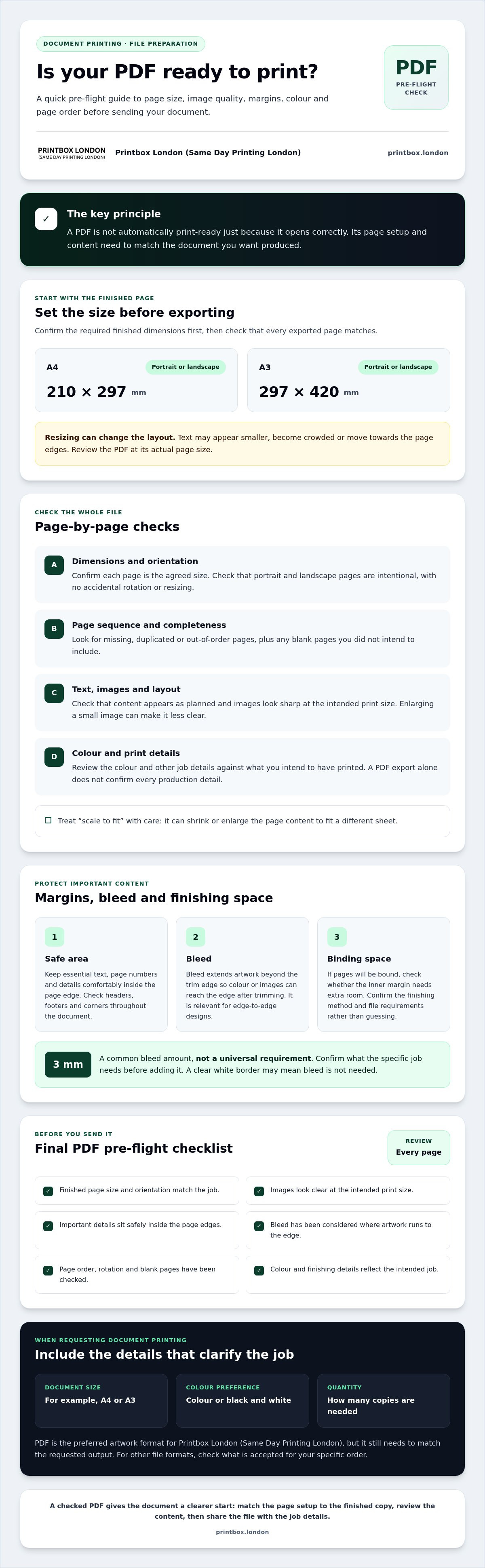
Confirm the required finished size first. A4 measures 210 × 297 mm and A3 measures 297 × 420 mm. If you have agreed another size, set the pages to those dimensions before exporting, then check that each page is correct.
Changing page size after laying out a document can affect text flow, image placement and margins. Resizing an A4 report to A3, for instance, may make the content appear smaller on the page. Resizing it down can crowd text or push elements towards the edges. Review the exported PDF at its actual page size.
Printbox London (Same Day Printing London) prints A4 and A3 documents in colour or black and white, including reports, presentations, manuals and contracts. Check that your PDF matches the requested size and job details before sending it for review. For other printing needs, confirm the relevant product size and specification before preparing the file.
Set up PDF pages, margins and finishing for the printed document
A correctly sized first page is not enough. Check the whole PDF, because mixed page dimensions, a rotated sheet or an extra blank page can affect the finished document. When preparing PDFs for document printing, review the exported file itself, not just the settings in your editing software.
Check page size, orientation and page order
Scroll through every page and confirm that the dimensions match the agreed job. Check that portrait and landscape pages appear intentionally and that no page has been rotated or resized by mistake. A report with one landscape chart may be correct; several unexpectedly rotated pages may indicate an export or layout issue.
Review the sequence from beginning to end. Look for missing, duplicated or out-of-order pages, as well as blank pages you did not intend to include. If the document contains different page sizes, confirm that each one is deliberate and tell the printer when you send the file.
Take care with “scale to fit” options. They can shrink or enlarge page content to fit a different sheet, changing the intended printed size. If you need help with a document-printing job, check the printing service details and ask about the requirements for your document.
Review margins, bleed and finishing space
Keep important text, page numbers and other details inside a safe area, with enough space between them and the edge of the page. This reduces the chance of essential content sitting too close to the trim edge. Check headers, footers and content near the corners on every page, not just the opening page.
Bleed is the area where artwork extends beyond the trim edge, allowing colour or an image to reach the edge after trimming. It is relevant when the design runs right to the edge. If the page has a clear white border, bleed may not be needed. A 3 mm bleed is common, but it is not a universal requirement, so confirm what the specific job needs before adding it.
Finishing can also affect the space your layout needs. If pages will be bound, check whether the inner margin needs extra room so text does not sit too close to the spine or binding edge. Do not guess the allowance: confirm the finishing method and file requirements before exporting. If you are unsure about the specification, ask Printbox London (Same Day Printing London) before sending the final PDF.
Check PDF images, resolution and colour before printing
Images and colour can look convincing on screen but reproduce differently on paper. When preparing PDFs for document printing, check images at their actual placed size and confirm the colour setup for the job. Printbox London (Same Day Printing London) recommends a target of 300 dpi for raster images at final print size. This is a useful guide, not a guarantee of print quality: the source image and how it is used still matter.
Are the images sharp enough at final size?
Open the PDF and inspect each image at the size it will appear on the printed page. A small preview can hide softness, jagged edges or pixelation. Use the original image file where possible, rather than a screenshot or a copy taken from a website.
Enlarging an image spreads its existing pixels across a larger area, reducing its effective resolution. For example, doubling an image’s width and height halves its effective dpi. Check images after resizing, cropping or placing them in the page, not only before adding them to the document.
How should PDF colour be checked?
RGB is commonly used for screens, while CMYK is the supplied print colour target. If an RGB file is converted to CMYK for printing, some colours can shift because the two colour modes represent colour differently. Bright screen colours may be especially difficult to reproduce exactly in print.
Screen colour and printed colour may not match exactly. Your monitor’s settings and the print process can both affect how a colour appears, so do not judge a file solely by its on-screen appearance. If a particular colour is important, ask the printer about colour requirements for the specific document and output before finalising the PDF.
For a final check, look closely at photographs, charts, logos and coloured text. Make sure key details remain clear and colour choices provide readable contrast. Confirm any required colour setup for the job rather than assuming every PDF needs the same settings.
Use this final PDF pre-flight checklist before sending the file
Exporting a PDF does not automatically make it print-ready. Open the final exported file and inspect every page, rather than relying on how the original design file looked. Use this sequence before submission:
- Confirm page size. Check that the PDF dimensions match the agreed finished size.
- Check orientation and page order. Make sure pages are intentionally portrait or landscape, correctly sequenced and free from unintended blanks or duplicates.
- Review text and layout. Check that headings, tables, page numbers and essential details are visible, correctly placed and not clipped.
- Look for font problems. Check for missing fonts, substituted characters or text that has shifted since export.
- Inspect image sharpness. View images at their placed size and look for softness or pixelation.
- Check colour. Confirm that the colour appearance and any required print colour settings suit the job.
- Check bleed where relevant. If artwork reaches the trimmed edge, confirm the bleed requirements for this specific job.
Then make sure you are viewing the correct, final export. If you have made changes, export again and check the new file, not an earlier version. Preparing PDFs for document printing carefully can catch common file issues, but a visual check does not confirm every production requirement. The printer may need to check the PDF against the requested size, quantity and finishing specification.
What to send with the PDF
Give the printer enough information to assess the file and job together. Include:
- The document or product type, finished size and quantity.
- Whether it should be printed single- or double-sided.
- Your paper preference, if you have one, and any requested finish.
- Your required deadline and collection or delivery preference, for confirmation.
- The final artwork file and any questions about file requirements.
PDF is the preferred artwork format. JPG/JPEG, PNG, TIFF and ZIP are also accepted formats, though the suitable format can depend on the job. If you are unsure whether your file suits the specification, mention that when you enquire. Confirming the details before production can help identify any corrections needed.
Send a checked PDF for document printing in London
Once you have reviewed the exported file, send it with the full job specification. A clear brief helps the printer check whether the PDF suits the requested output and identify anything that needs confirming before production.
Printbox London (Same Day Printing London) prints A4 and A3 documents in colour and black and white, including reports and presentations. PDF is the preferred artwork format, but suitability depends on the file and job details. Exporting a PDF does not guarantee it can be printed without adjustment.
Printbox London (Same Day Printing London) serves customers throughout Greater London, including Central London, North London, East London, South London and West London, as well as Haringey, Hackney, Islington, Camden, Enfield, Barnet, Westminster, Newham, Redbridge and Waltham Forest. The shop is at 52 West Green Road, South Tottenham, London N15 5NR.
When a PDF needs a printer’s check
Ask before submission if you are unsure about page size, bleed, colour settings or space for finishing. Requirements vary with the document and specification. Bleed, for example, is relevant when artwork extends to the trimmed edge, and the right file setup depends on the intended output.
Turnaround depends on the order. Same-day printing is available for selected quantities and specifications, subject to job requirements and current capacity. If you have an urgent deadline, include it in your enquiry and ask Printbox London (Same Day Printing London) to confirm the available turnaround.
Request document printing from Printbox London (Same Day Printing London)
Send the final PDF and specify the requested output. Include:
- Document type and finished size, such as an A4 report or A3 presentation.
- Quantity and whether it should be printed single- or double-sided.
- Any finishing requirements and paper preference.
- Your deadline, particularly if you are asking about same-day availability.
If you are uncertain whether your file meets the requirements, include your question rather than guessing. Share your specifications so the job can be assessed against the intended output.
Get your PDF ready for its next step
Preparing PDFs for document printing comes down to matching the file to the finished document, then checking the exported PDF page by page. Confirm the size, orientation, page order and safe margins. Inspect images at their intended print size, review colour, and include bleed only where the design and job requirements call for it.
PDF is the preferred artwork format for Printbox London (Same Day Printing London), but suitability still depends on the file and specification. A4 and A3 colour and black-and-white document printing is available for items such as reports and presentations. Same-day printing is available for selected quantities and specifications, subject to job requirements and capacity. Include your quantity, finished size, sidedness, finishing needs and deadline when you enquire.
A careful file check gives your document a clearer start. For printing in London, send the checked PDF and job details to Printbox London (Same Day Printing London) to ask about your requirements.
Frequently Asked Questions
What makes a PDF print-ready?
A print-ready PDF has page dimensions, orientation and content that match the intended printed document. Check every page for correct order, visible text, sharp images and suitable margins. Add bleed only if artwork extends to the trimmed edge, and confirm any job-specific requirements with the printer. Exporting to PDF is not, by itself, proof that the file is ready to print.
Should I save a PDF in CMYK or RGB for printing?
CMYK is the supplied print colour target, while RGB is commonly used for screen display. Ask the printer what colour setup is required for your specific document and output. Converting RGB to CMYK can change how some colours look, and colours on screen may not match printed results exactly. Review important colours in the exported PDF and raise any colour-critical requirements before sending it.
What resolution should images be in a document PDF?
Raster images should target 300 dpi at their final print size. Check each image at the size it appears on the page, as enlarging a small image reduces its effective resolution and can make it look soft or pixelated. Use original image files rather than low-resolution screenshots where possible. The 300 dpi target is a practical guide, not a guarantee of print quality.
Do I need 3 mm bleed for every document?
No. Bleed is relevant when an image or colour runs beyond the trim edge, allowing it to reach the edge after trimming. A 3 mm allowance is common, but it is not a universal requirement. A document with a clear white margin may not need bleed. Check the requirements for your document and printing specification before adding it to the PDF.
Can I send a Word document instead of a PDF for printing?
PDF is the preferred artwork format at Printbox London (Same Day Printing London), as it helps preserve the layout across devices. Word files can reflow or display differently depending on fonts and software. Word is not listed among the accepted file formats, so check before sending one. Exporting your finished document as a PDF and reviewing every page first is a practical step.
Can a PDF be printed on the same day?
Turnaround can depend on the document, quantity and whether the PDF needs changes, so share your deadline when enquiring and ask for confirmation. Same-day printing is available for selected quantities and specifications, subject to order requirements and current capacity. Printbox London (Same Day Printing London) serves customers across Greater London, including North London and boroughs such as Haringey, Hackney and Camden. Include the finished size and quantity in your enquiry so availability can be checked against the order.
Article by
Printbox London Team
The Printbox London (Same Day Printing London) team provides practical printing guidance based on real customer requirements and day-to-day print production. We serve customers across Greater London from our Tottenham print shop, with same-day printing available for many products depending on quantity, specification, artwork and production capacity.