
How to Avoid Pixelation in Large Prints at Any Size
Oct 20, 2026
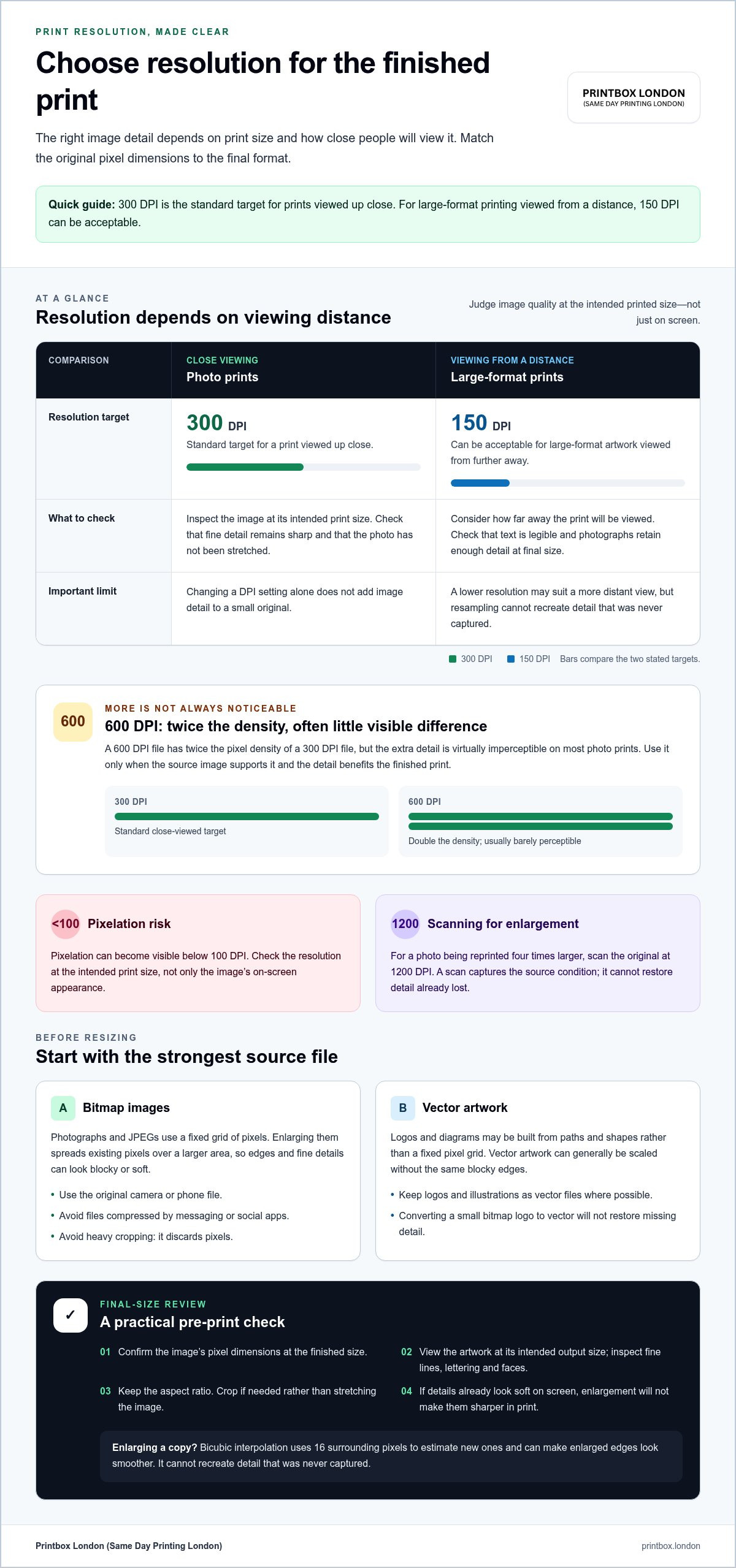
A large print doesn’t automatically need 300 DPI. For a print viewed up close, 300 DPI is the standard target; for large-format printing viewed from a distance, 150 DPI can be acceptable. The practical answer to how to avoid pixelation in large prints is to match the image’s pixel dimensions to the finished size and viewing distance.
It’s tempting to assume that a larger file or higher DPI setting will fix every image-quality problem. But enlarging a low-resolution image can make pixels more visible, while a print viewed from further away can look clear at a lower resolution. This guide explains how DPI, image dimensions and viewing distance work together, with practical steps for preparing photos and graphics and catching problems before printing.
Key Takeaways
- Choose an image with enough original pixels for the finished print size; enlarging a small file can make blocky edges more obvious.
- Check image dimensions at the intended print size, not just the resolution shown on screen.
- Use the highest-quality original photo or graphic available, and avoid files compressed by messaging or social media apps.
- Factor in how far away people will view the print when deciding how much detail it needs.
- Review the artwork at its final dimensions before printing so you can spot softness or pixelation early.
Picture Perfect: How to Avoid Pixelation in Your Print Images?
To avoid pixelation, match the image’s pixel dimensions to the finished print size and don’t stretch a small file. Which image interpolation method gives the best print quality? Bicubic interpolation is a practical choice: it uses 16 surrounding pixels to calculate new ones, helping produce a smoother enlargement.
-
Understand resolution and pixelation
Check the image’s pixel dimensions before enlarging it. A bitmap image is built from a fixed grid of coloured pixels; increasing its size spreads those pixels across a larger area. Editing software must estimate the extra pixels, so edges and fine details can look blocky or soft. Pixelation can become visible below 100 DPI, while 300 PPI is a common print-quality target. Judge resolution at the intended print size, not just on your screen.
-
Check the image source
Use the original image file from your camera or phone, rather than a copy saved from a message or social post. Recent smartphone cameras commonly produce files around 12 to 50 megapixels, but sharing apps can compress a 12-megapixel photo to less than 1 megapixel. That removes image information before printing. Find the original in your camera roll or storage, then check its pixel dimensions. For a small photographic print, compare the source file with the image prepared for instant photo prints.
-
Distinguish bitmap and vector images
Before resizing, identify whether your artwork is a bitmap or vector. Photographs and JPEGs are usually bitmaps, so their detail depends on the file’s pixel count. Logos and diagrams may be vector artwork, built from paths and shapes rather than a fixed pixel grid. Vectors can generally be scaled without the same blocky edges. Keep logos as vector files where possible: converting a small bitmap logo to vector won’t restore details it never contained.
-
Assess camera megapixels
Set your camera to its highest image-quality setting before taking a photo for print. A recent smartphone with a 12-megapixel camera generally creates files suitable for standard print sizes, but megapixels describe pixel count, not every aspect of image quality. Focus, lighting, lens performance and compression also affect detail. A sharp 12-megapixel original can outperform a larger, blurry file. Avoid cropping heavily, because cropping discards pixels and leaves fewer details for the final print.
-
Choose a careful enlargement method
Resize a copy of the original, keeping the untouched file available for comparison. Bicubic interpolation uses 16 nearby pixels to estimate added pixels, which can make enlarged edges look smoother. It cannot recreate detail that was never captured, so don’t treat resampling as a fix for a tiny source image. Inspect fine lines, lettering and faces at the intended output size. If those details already look soft on screen, further enlargement won’t make them sharper in print.
Recommended DPI for photo prints
Prepare photos at 300 DPI for close-viewed prints; 600 DPI doubles the pixel density but is virtually imperceptible on most photo prints. For large-format artwork, a print-ready file should match the finished dimensions and account for resolution, colour mode and layout requirements.
-
Set the recommended photo print DPI
Set a photo’s resolution to 300 DPI at its intended print size, then inspect the image at that scale. DPI describes how many image dots fit within each printed inch, so changing the setting without adding image detail won’t improve a small original. A 600 DPI file contains twice the density, but that extra detail is virtually imperceptible on most photo prints. Choose it only when the source image supports it and the detail serves the finished print.
Keep the photo’s aspect ratio, the relationship between its width and height, when resizing. If the print shape differs from the photo, you may need to crop an edge. Check that important faces or details remain within the image area. Don’t stretch a photo to fill a different shape, as this distorts subjects and can soften details.
-
Check print-ready file requirements
Create the artwork at its finished dimensions and save a print-ready PDF once the layout is complete. Check image resolution at that size, colour mode, page orientation, and whether the design needs bleed or safe margins. Bleed extends artwork beyond the trim edge; a safe margin keeps essential text and details away from it. Requirements vary by job, so don’t treat one setting as universal.
For a large-format design, check that text is legible from the intended viewing distance and that photographs retain enough detail at their final size. Keep logos or illustrations as vector artwork where possible. A correctly prepared PDF preserves page size and layout, but it can’t restore detail missing from an image. Before export, check for cropping, missing fonts and unwanted borders.
- Choose a file type that suits the artwork. Use a high-quality JPEG or TIFF for photographs; PNG can work well for graphics with sharp edges or transparency. Avoid repeatedly saving a JPEG, as each lossy save can reduce image detail. Keep the original photo untouched and export a separate copy for the print layout. Check that the exported file retains the intended aspect ratio and dimensions.
- Prepare scanned photographs carefully. Scan the original at 1200 DPI when the goal is to reprint it four times larger while keeping the scanned image’s quality. Clean the scanner glass first, keep the photograph flat and save the scan as a high-quality file. Before enlarging, inspect scratches, faded areas and existing blur. A scan captures the source condition; it won’t recreate detail already lost from the old photograph.
- Review colour and output settings before printing. A monitor displays light, while printed photos rely on ink and paper, so colours may look different. Use a colour mode appropriate for print and select the intended paper setting in the print workflow. Printer calibration helps align colour output with the expected result; suitable ink and photo paper also affect tone, contrast and fine detail. Check a proof or test print when colour accuracy matters.
What is the best print resolution?
For large-format prints, use 100-300 PPI, guided by viewing distance and image detail. Knowing how to avoid pixelation in large prints starts with checking the file’s pixel dimensions at its finished size, then inspecting the artwork for softness or blocky edges before printing.
-
Match resolution to viewing distance
Set the target resolution after deciding how close people will stand. A print viewed from 2 feet (0.6 metres) calls for 300 DPI; at 10 feet (3 metres), 100 DPI is recommended. A photo viewed from more than a metre away can still look acceptable at 150 DPI. Fine text and detail viewed close up need more pixels than broad shapes across a room.
Use 100-300 PPI as a starting range for large-format work viewed from a distance. Choose towards the higher end for intricate artwork or viewers standing nearby. A wide display viewed across a venue has different needs from a print examined at arm’s length. Judge the intended viewing position, not just the physical size.
-
Set print resolution and DPI
Check the image’s effective resolution at its final dimensions, not just the number shown in an editing programme’s resolution box. DPI refers to printed dots per inch; PPI describes image pixels per inch. The terms are often used interchangeably, but what matters is how many source pixels remain across each printed inch. Raising the DPI setting alone doesn’t add image detail.
For artwork containing text, aim for at least 400 DPI at its final size to keep lettering clear. Use the dimensions and viewing distance together: a file that suits a distant display may not preserve small text viewed close up. Zoom in on thin lines, labels and small type before export. Check that the file hasn’t been enlarged beyond its available pixels.
-
Scan at high resolution
Choose a scanner setting that captures enough original detail for the planned enlargement. Many home scanners can capture up to 1200 DPI, which can help when enlarging a small photograph or printed image. Scan the complete original, keep it flat, and avoid cropping away useful edges. Then calculate how large the scan can print at the resolution required for its viewing distance.
A high scan setting captures more source information; it doesn’t repair blur, scratches or faded details already present. Inspect the scan at full size before enlarging it. If fine details look indistinct in the scan, they’ll remain indistinct in print. Preserve the original scan and edit a separate copy.
-
Compare print and screen resolution
Don’t judge print readiness by how sharp an image appears on a screen. A resolution of 72 DPI is described as a screen sweet spot, but screens display images differently from printed surfaces. A web graphic can look crisp at its display size and still lack pixels for a large print. Check its pixel dimensions against the finished size instead.
Open the artwork at its intended print dimensions and inspect key details, including text and edges. If the image looks soft at that size, raising the resolution setting won’t restore missing pixels. The practical answer to how to avoid pixelation in large prints is to match image detail to viewing distance, then check the file at its final size.
Calculating pixel dimensions from print size
Calculate the pixel dimensions from the finished print size and target resolution. This gives you a practical way to assess whether an image has enough detail before resizing it or exporting the artwork.
- Convert centimetres to inches before calculating. One inch equals 2.54 cm, so divide each print dimension in centimetres by 2.54, then multiply by the target pixels per inch. For a 300 DPI target, a 10 × 15 cm print needs 1,181 × 1,772 pixels. Keep width and height in the same orientation as the design, or swap them if you rotate the artwork.
- Use the formula for each side separately: print dimension in centimetres ÷ 2.54 × target PPI = required pixels. For an A4 print at 300 DPI, the listed requirement is 2,480 × 3,508 pixels. Treat those dimensions as a check on the source image, not as a setting that creates missing detail. If the original file is smaller, enlarging its pixel dimensions won’t restore the lost information.
- Compare the required pixel count with the file’s actual dimensions. A 50 × 70 cm print at 300 DPI needs 5,906 × 8,268 pixels. If your image is below that size, consider whether the intended viewing distance allows a lower pixel density. For instance, the listed 13 × 18 cm example uses 768 × 1,063 pixels at 150 DPI, compared with 1,535 × 2,126 pixels at 300 DPI.
- Check the crop before judging whether the file meets the calculation. A 20 × 30 cm print requires 2,362 × 3,543 pixels at 300 DPI, but cropping the image to fit a different shape reduces the available pixels. Keep the original aspect ratio where possible. If the layout needs a crop, make it before checking the remaining image dimensions at the chosen print size.
- Inspect the image after placing it at its final dimensions in the design. A display preview can hide softness if the software scales the artwork to fit the screen. Check important edges and fine details at a useful zoom, then confirm the exported file retains the intended page size. For example, an A4 layout should remain A4 after export, rather than being rescaled accidentally.
Large-format printing and viewing distance
Set resolution for where the print will be viewed, not simply its physical size. For distant large-format prints, 100-300 PPI is a useful target range; close viewing calls for more detail.
-
Account for viewing distance
Decide where viewers will stand before setting the file’s resolution. A large-format print seen from a distance may use 150 DPI, rather than the 300 DPI target for a print held in the hands. At 10 feet (3 metres), 100 DPI is recommended. Fine text or detail viewed close up needs more pixels than broad shapes across a room.
-
Consider AI upscaling software
Use AI upscaling only when the original file lacks enough pixels for its planned size. No single software option suits every photo, so compare results on faces, lettering, textures and sharp edges. AI can estimate extra detail, but may also alter small features. Save an enlarged copy, then inspect it at the final print dimensions before using it.
- Match the resolution to the actual display conditions. A poster intended for a wall across a room has different requirements from one people will examine at arm’s length. For large-format printing viewed from a distance, 100-300 PPI is a practical range. Choose towards the higher end if the artwork contains fine lines, small labels or detailed photographs.
- Check image dimensions after cropping or resizing. Cropping a wide photo to fit a narrower layout removes pixels from its sides, reducing the remaining detail. A file that suited a large display before cropping may fall short at the same print size afterwards. Review the cropped image at its final dimensions, especially where text or faces sit near the edges.
- Inspect the complete layout at a realistic viewing scale. A screen preview can make a large file look sharp by reducing the artwork to fit the display. Zoom in on small details, then step back to judge whether the overall image reads clearly. This helps distinguish actual pixelation from details that simply aren’t visible at the planned viewing distance.
- Choose an enlargement method that suits the source image. Bicubic interpolation calculates added pixels from surrounding image data, while AI upscaling generates estimated detail. Neither method restores information that was poorly captured or missing from the original. Compare the resized version with the source, and avoid excessive sharpening that creates halos around edges or makes textures look unnatural.
- Plan for the furthest normal viewing position, then consider the closest likely inspection. A display viewed from 650 feet (200 metres) may use resolution as low as 1 DPI, but that figure does not suit a print viewed nearby. The right target depends on distance and image detail. Keep essential text clear at the closest expected viewing point.
Printbox London (Same Day Printing London): Same Day Printing
Printbox London (Same Day Printing London) provides a practical next step when your artwork is prepared and you need it printed. Same Day Poster Printing, Same Day Flyer Printing and Same Day Business Card Printing are available depending on quantity and specification.
Before ordering, share the finished size, quantity and print-ready artwork. For a large poster, include the image dimensions and intended viewing distance so the file can be assessed in context. Artwork readiness, finishing and order specifications can affect turnaround, particularly for urgent or larger jobs.
Need printing in London? Contact Printbox London (Same Day Printing London) or visit printbox.london.
Get Your Artwork Ready for the Next Print
A clear print starts with a well-prepared file, but the next step is making sure the artwork suits its purpose. Before sending it, confirm the finished size, where it will be displayed and which details need to remain sharp. Keep the original file safe and prepare a separate print version. This lets you adjust the layout without losing the source image.
A reliable way to avoid pixelation in large prints is to make the final decision at actual print dimensions, rather than relying on a screen preview. If the image looks weak at that size, changing the resolution label won’t add detail. Revisit the source image or layout before printing, especially if the design contains small text or fine lines.
Have your size, quantity and artwork details ready when you get in touch. Printbox London (Same Day Printing London) can help with your printing requirements; turnaround depends on the order specifications.
Prepare the file carefully, and you’ll be ready to move from screen to print with confidence.
Frequently Asked Questions
How can you ensure a sharp print, from small prints to large formats?
Prepare the whole design, not just its photographs. Keep text and logos as clean artwork, leave important content clear of the trim edge, and check that no element is accidentally hidden behind another layer. A small test print can reveal contrast, fine-line or layout issues that a monitor may not show. For a large display, also consider whether key wording is easy to read from its intended position.
How do you calculate the number of pixels you need?
Once images are placed and cropped, use the final layout’s effective-resolution readout as a practical check. It reflects the pixels available in the layout, not just the original file’s properties. Check each image separately, especially a background photo or small inset image. If someone else is preparing the design, ask for the finished dimensions and image-resolution details alongside the proof.
What is the correct photo resolution?
There isn’t one setting that suits every photo print. Decide how the image will be used, then assess its focus, lighting and visible texture at the planned size. A sharply focused portrait may need different treatment from a soft-focus image or a photograph with intricate foliage. Don’t judge by the resolution label in the file information alone: it doesn’t show whether the photo itself is clear.
How do viewing distance and print size affect the required image resolution?
Consider what viewers need to see, not just how large the print is. A photo used as a distant backdrop may need clear overall shapes, while a display containing product names must keep those words readable. Walk through the space and consider likely sightlines, obstructions and lighting. These practical conditions help you decide which parts of the artwork need the most attention before preparing the file.
How do I calculate the pixel dimensions needed for a specific print size?
Use the exact finished size from the design brief, including whether the artwork is portrait or landscape. If the image will be cropped to fit, assess the remaining image area rather than the uncropped photo. Note the chosen dimensions in the artwork file and compare them with the final proof. This helps catch accidental resizing between design and file export.
Can low-resolution images be enlarged without pixelation?
Enlarging an image may improve its appearance, but can’t guarantee that fine detail will hold up in print. Before using it, check whether a higher-quality original exists in a camera roll, archive or shared project folder. If not, consider redesigning the layout so the image occupies less space, or use it as a softer background rather than a prominent focal point.
How should I export files for large-format printing: TIFF, JPEG, or PDF?
For a complete design with text and several placed images, export a PDF and review that file, not just the editable project. Confirm that the page dimensions and orientation are correct, and that fonts and linked artwork appear as intended. TIFF or JPEG can suit a single photographic image. Keep a separate working copy so later edits don’t require rebuilding the final layout.
Article by
Printbox London Team
The Printbox London (Same Day Printing London) team provides practical printing guidance based on real customer requirements and day-to-day print production. We serve customers across Greater London from our Tottenham print shop, with same-day printing available for many products depending on quantity, specification, artwork and production capacity.